Building a personal habit tracker helps you stay consistent and reach your goals faster. In this guide, you will learn how to make a habit tracker in Google Sheets easily using simple steps, clean layouts, and helpful formulas. By the end, you will have a custom dashboard that fits your routine and keeps your progress visible every day.
Building a habit tracker is one of the simplest ways to turn good intentions into daily action. When you can see your streaks, spot your weak days, and celebrate small wins, motivation becomes much easier to maintain. The best part is that you do not need expensive software or complicated apps. You can build a reliable system in a free spreadsheet tool that you already use.
In this guide, you will learn how to make a habit tracker in Google Sheets easily, even if you have never designed a spreadsheet before. We will walk through the setup, the layout, the visual styling, and the light automation that makes your tracker feel smart without making it complicated. You will also learn how to keep the sheet clean, how to adapt it for different goals, and how to avoid the common mistakes that cause people to abandon their trackers after a few weeks.
By the time you finish, you will have a practical tool that fits your routine, looks clear on both phone and desktop, and gives you a honest picture of your progress. Let us begin with what you need.
Key Takeaways
- Start simple: Begin with a small set of habits so your tracker stays clear and easy to maintain.
- Choose the right layout: A weekly or monthly grid gives you a clean view of streaks and missed days.
- Use color coding: Visual cues like green for completed days help you read progress at a glance.
- Add formulas for automation: Simple count and average formulas reduce manual tracking and show your consistency.
- Keep it accessible: Place your sheet on your phone or desktop so you can log habits quickly.
- Review weekly: Check your patterns once a week to adjust habits that feel too hard or too easy.
- Protect your data: Use sheet protection and backups so accidental edits do not erase your progress.
Quick Answers to Common Questions
Should I track many habits at once?
Start with a few important habits instead of a long list. A smaller set is easier to maintain and makes your progress easier to read.
What is the easiest way to mark a completed day?
Checkboxes are usually the fastest option because they are quick to click and easy to understand. Use them if you want a simple, low-effort logging method.
How often should I review my tracker?
A weekly review works well for most people because it is frequent enough to spot patterns without becoming overwhelming. Use that time to adjust habits that feel too hard or too vague.
Can I use this tracker on my phone?
Yes, a Google Sheet can be opened on mobile, which makes it convenient for daily logging. Test the layout on your phone so the cells and buttons feel easy to use.
What if I miss several days in a row?
Do not delete the missed days or start over just because you slipped. Keep the record honest, then use the next day as a fresh chance to continue.
📑 Table of Contents
- What You Will Need
- Step 1: Create a New Google Sheet and Name It Clearly
- Step 2: Decide on Your Tracker Layout
- Step 3: Build the Habit List and Date Headers
- Step 4: Add Checkboxes or Simple Markers
- Step 5: Make the Sheet Visually Clear
- Step 6: Add Simple Formulas for Progress Tracking
- Step 7: Turn the Sheet into a Daily Routine
- Troubleshooting Common Issues
- Next Steps and Maintenance
What You Will Need
Before you open your spreadsheet, gather a few basics so the process stays smooth. You do not need advanced technical skills, but a little preparation helps you build a tracker that feels easy to use.
- A Google account so you can create and save a Google Sheet
- A clear list of habits you want to track, ideally no more than five to start
- A device with internet access, such as a laptop, tablet, or phone
- A few minutes of quiet focus so you can set up the layout without rushing
- Optional: a color palette you like, or a simple icon set if you want extra visual cues
If you are new to spreadsheets, keep your goal simple. Think of this project as building a clean grid that answers one question each day: did I do the habit or not. Once that foundation is solid, you can add styling, summaries, and refinements later.
Step 1: Create a New Google Sheet and Name It Clearly
Start by opening Google Sheets and creating a blank spreadsheet. Give the file a name that is easy to recognize later, especially if you plan to make several versions over time. A clear name helps you find the right tracker quickly when you are in a hurry.
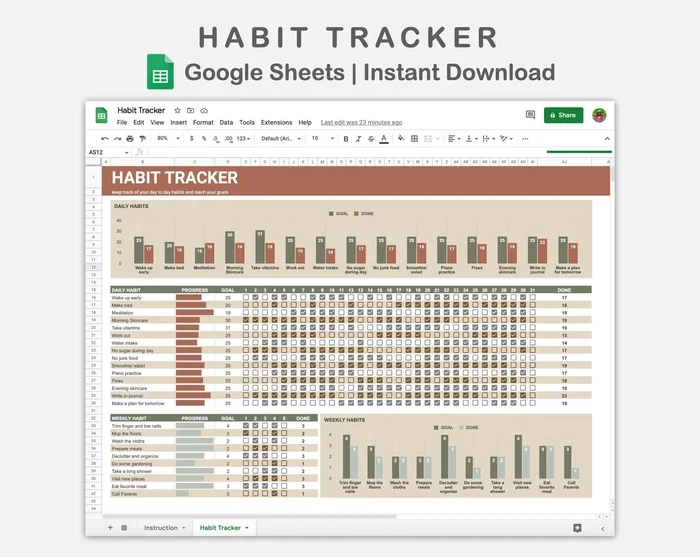
Visual guide about how to make a habit tracker in Google Sheets
Image source: i.pinimg.com
Name the file with purpose
Choose a name that tells you what the sheet does and which time period it covers. For example, you might use a name like Daily Habit Tracker or Weekly Habit Log. If you expect to reuse the sheet every month, include the month or year so old versions do not get mixed up with new ones.
Set up the first tab
Keep the first tab simple. You can rename the tab from the default name to something like Tracker or Main Log. If you think you will want separate sections later, you can add more tabs, but for a beginner build, one clean tab is usually enough. A single tab reduces confusion and makes daily logging faster.
Pro Tip: Do not overcomplicate the first version. A simple sheet you actually use is better than a fancy sheet you avoid because it feels heavy.
Step 2: Decide on Your Tracker Layout
The layout you choose affects how easy the tracker feels to use. Most people do well with either a monthly grid or a weekly grid. The right choice depends on how often you want to review your progress and how much detail you want to see at once.
Choose a monthly grid for broad overview
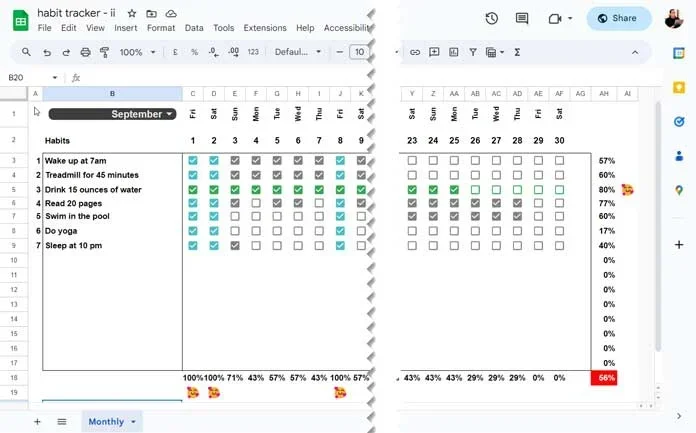
A monthly grid works well when you want to see the whole picture at a glance. In this layout, each row represents one habit, and each column represents a day of the month. This format is easy to scan and works nicely for habits you want to repeat every day.
Choose a weekly grid for tighter focus
A weekly grid is useful if you prefer shorter cycles or if your habits change often. With this layout, you track a smaller number of days at a time, which can make the sheet feel less crowded. This option also works well if you like to reset your focus every Sunday or Monday.
Pick your core columns
No matter which grid you choose, include the basics first. You will usually want a column for the habit name, followed by columns for each date or day. You may also want a notes column if you want to record why you missed a day or what helped you succeed.
Pro Tip: Start with fewer habits than you think you need. A tracker with too many rows can feel overwhelming, and overwhelming sheets often get ignored.
Step 3: Build the Habit List and Date Headers
Now it is time to fill in the structure. Begin with your habits, then add the dates or day labels that will guide your logging. Clear labels make the sheet easier to read and reduce mistakes when you fill it in later.
List your habits in the first column
Type each habit into its own row in the first column. Use short, specific names so the tracker stays readable on mobile screens. Instead of vague goals, write actions you can clearly recognize, such as drink water before coffee, read ten pages, or stretch for five minutes.
Add date or day headers across the top
In the top row, create headers for each day you want to track. If you are building a monthly view, you can use numbers like 1, 2, 3 and so on. If you prefer a weekly view, you can use day names such as Mon, Tue, Wed. Keep the headers consistent so your eye can move across the sheet smoothly.
Leave space for clarity
Do not cram every column too tightly. Give yourself enough room to see each habit and each date without strain. If you plan to add summary columns later, leave a little space on the right side of the sheet so the layout does not feel crowded when you expand it.
Pro Tip: Use short habit names at first. You can always make them more detailed later, but short labels are easier to scan during a busy day.
Step 4: Add Checkboxes or Simple Markers
A habit tracker needs a fast way to record success. Checkboxes are a popular choice because they are quick to click and easy to understand. If checkboxes do not suit your style, you can also use simple markers like yes, no, or a symbol that means completed.
Insert checkboxes for a clean interactive feel
Select the cells where you want to mark completion, then add checkboxes to those cells. This gives you a clickable option that feels satisfying to use. Checkboxes also make it easy to see completed days without needing to read text.
Use text markers if you want more detail
If you want to capture more nuance, you can use simple text values instead of checkboxes. For example, you might mark a day as done, skipped, or partial. This approach gives you more context, but it also requires a little more discipline because you have to type each entry.
Keep the input method easy
The best marker system is the one you will actually use. If you are tracking habits on your phone, choose a method that is quick to tap or type. If you are using a desktop, choose a method that feels smooth when you log several habits at once.
Pro Tip: Test your input method on a phone before you settle on it. A tracker that feels awkward on mobile often becomes a tracker you stop opening.
Step 5: Make the Sheet Visually Clear
A habit tracker should be easy to read at a glance. Good visual design does not need to be fancy. It just needs to help your eyes find completed days, missed days, and habit names without effort.
Use color to highlight completion
Apply a light background color or text color to completed cells if that helps you see progress faster. Some people like a green fill for successful days, while others prefer a simple strike-through or bold text. Pick one visual signal and keep it consistent so the sheet stays readable.
Add borders and spacing for structure
Borders can help separate habits from dates and make the grid feel organized. Use them lightly so the sheet does not look noisy. If you want a cleaner look, you can rely on spacing and header shading instead of heavy lines.
Freeze the header row or habit column
If your tracker grows longer, freezing the top row or the first column can make navigation easier. This keeps your labels visible while you scroll, which is especially helpful on a small screen or a long monthly sheet.
Pro Tip: Less is more with color. Too many shades can make the tracker confusing, while a few consistent colors can make it feel calm and useful.
Step 6: Add Simple Formulas for Progress Tracking
Once your basic grid is working, you can add a few formulas to make the sheet more useful. You do not need advanced spreadsheet skills for this. A few simple summaries can tell you how often you completed each habit and how consistent you have been overall.
Count completed days per habit
Create a summary column next to each habit and use a count formula to tally completed marks. This gives you a quick number that shows how many days you succeeded during the tracking period. Seeing that number grow can be surprisingly motivating.
Calculate a simple completion rate
If you want a clearer picture, divide your completed days by the total number of days tracked. This gives you a percentage that shows your consistency. A percentage can be helpful because it adjusts automatically as your tracker grows, and it helps you compare habits without guessing.
Add a small overall summary
You can also add a top summary that shows your total completed habits for the week or month. This gives you a quick snapshot of your general momentum. Keep the summary simple so it supports your focus instead of distracting from it.
Pro Tip: Test your formulas with a few sample marks before you rely on them. A formula that looks right can still produce surprises if the range is off.
Step 7: Turn the Sheet into a Daily Routine
A habit tracker only works if it becomes part of your day. The spreadsheet itself is helpful, but the real value comes from using it consistently. Make the process easy enough that you can complete it even when you are tired or busy.
Place the sheet where you will see it
Open the tracker at the same time each day if possible. Some people like to log habits in the morning, while others prefer to check them off before bed. Choose a time that matches your routine so the tracker feels natural instead of forced.
Keep logging short and direct
When you open the sheet, log your marks quickly and move on. If you start overthinking each habit, the process can become annoying. The goal is to capture the information fast, not to turn the tracker into a long reflection session every day.
Review patterns once a week
Set aside a short weekly review to look at your progress. Notice which habits are easy to maintain and which ones keep getting missed. If a habit is repeatedly skipped, ask whether the goal is too big, too vague, or poorly timed in your day.
Pro Tip: Pair the tracker with an existing habit if you want stronger consistency. For example, log your marks right after breakfast or right after brushing your teeth at night.
Troubleshooting Common Issues
Even a simple tracker can run into small problems. The good news is that most of them are easy to fix once you know what to look for. Below are a few common issues and practical ways to handle them.
The sheet feels too busy
If your tracker looks crowded, reduce the number of habits or shorten the tracking window. A cleaner sheet is usually more effective than a detailed one that you avoid opening. You can always add more habits later once the routine feels stable.
You forget to log your habits
If logging slips your mind, move the tracker to a more visible place in your digital routine. You can also set a reminder on your phone or link the tracker to a daily event you already do. The goal is to reduce friction, not to rely on willpower alone.
Your formulas are not updating correctly
If a summary looks wrong, check the cell range first. Make sure the formula includes the right rows and columns, and confirm that your markers are consistent. A small mismatch in the range can throw off the whole summary.
The tracker feels discouraging
If missed days make you want to quit, adjust the design so the sheet feels supportive rather than judgmental. You can add a notes column, lower the pressure by tracking fewer habits, or focus on streaks in a kinder way. A tracker should help you recover, not make you hide from it.
Pro Tip: When in doubt, simplify. Most tracking problems come from too much complexity, not from too little ambition.
Next Steps and Maintenance
Once your habit tracker is working, think about how to keep it useful over time. A good tracker evolves slowly, not all at once. Start with the basics, then improve only the parts that will make your routine smoother.
Review and refine each month
At the end of a tracking cycle, look at what worked and what did not. You may decide to keep the same layout, change the habit list, or adjust the time of day you log your progress. Small refinements can make the sheet feel fresh without requiring a full rebuild.
Back up important versions
If you make major changes, save a copy before you edit the live version. That way, you can return to an older layout if a new design does not work out. This is especially helpful if you have built formulas or formatting you do not want to lose.
Expand only when it helps
If you want to grow the tracker, add one improvement at a time. You might add a notes column, a second tab for reflections, or a simple chart for motivation. Keep each addition tied to a real need so the sheet stays practical instead of decorative.
Pro Tip: The best habit tracker is the one that stays useful after the novelty fades. Prioritize clarity, speed, and consistency over fancy features.
You now know how to make a habit tracker in Google Sheets easily, from the first blank page to a clean, usable system. Keep the design simple, make logging fast, and review your progress often. Over time, that small daily habit of checking your tracker can become the very consistency you are trying to build.