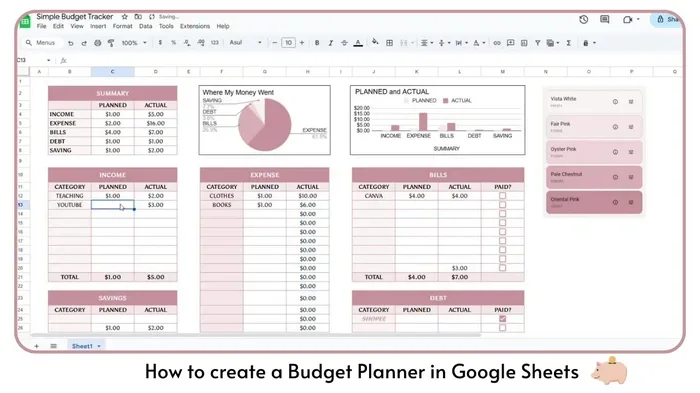
Creating a budget planner helps you control your money effectively. This guide shows you how to create a budget planner in Google Sheets from scratch. You will learn simple formulas and layout tricks to track every dollar easily.
Managing money feels hard sometimes. You might wonder where your cash goes each month. A simple tool helps you see the full picture. This tutorial teaches you how to create a budget planner in Google Sheets. You do not need fancy software. You just need a free account and some time.
We will build a sheet step by step. You will learn to list income and costs. You will also add formulas to do the math for you. By the end, you will have a working tool. You can use it every month to stay on track. Let us start building your financial helper today.
Key Takeaways
- Setup: Start with a new Google Sheets file and name it clearly.
- Income: List all income sources in the first section.
- Expenses: Categorize fixed and variable costs separately.
- Formulas: Use SUM functions to calculate totals automatically.
- Visuals: Add charts to see spending trends quickly.
- Tracking: Update the sheet weekly for accurate data.
- Goals: Set specific savings targets within the planner.
Quick Answers to Common Questions
Should I use a template?
Templates save time. Google Sheets offers free budget templates. You can use them if building from scratch feels hard.
How often should I update?
Update weekly for best results. Waiting until month end makes data hard to remember. Small updates keep accuracy high.
Can I access this on mobile?
Yes, the Google Sheets app works on phones. You can edit numbers on the go. The screen is smaller but functional.
What if I overspend?
Look at your variable costs. Reduce fun money or food costs next month. Adjust the plan to fit reality.
Is my data safe?
Google saves data to the cloud. It is secure if you use a strong password. Enable two-factor authentication for extra safety.
📑 Table of Contents
What You Will Need
Before you begin, gather these items. You need a computer or phone. You also need internet access. Finally, you need a Google account.
- Device: A laptop or desktop works best for typing.
- Account: Sign in to your Google drive.
- Time: Set aside thirty minutes for this task.
- Data: Have your bank statements ready nearby.
Phase 1: Set Up Your File
First, open your browser. Go to sheets.google.com. Click the plus sign to start a new sheet. You will see a grid of empty cells. This is your workspace.
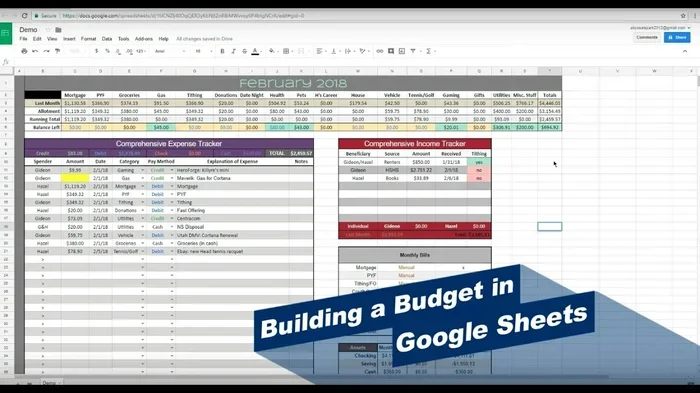
Visual guide about how to create a budget planner in Google Sheets
Image source: i.ytimg.com
Name Your Sheet
Look at the top left corner. You will see a box saying Untitled Spreadsheet. Click that box. Type a clear name like Monthly Budget. This helps you find it later.
Adjust Column Width
Look at the letters at the top. Click the line between column A and B. Drag it to make the cells wider. This makes writing easier. You do not want text cut off.
Pro Tip: Keep your labels short. Use words like Rent or Food. Long words make the sheet messy.
Phase 2: Build the Income Section
Now we add money coming in. This is your income. Create a header in cell A1. Type Income in bold letters. Make the text larger if you like.
List Income Sources
Go to cell A2. Type your first source. Maybe you have a job. Type Paycheck there. Move to cell A3. Type any other money sources. Include side jobs or gifts.
Add Amounts
Move to column B. This column holds numbers. Type the amount for each source. Be exact. Use your latest pay stub. Do not guess the numbers.
Calculate Total Income
Find the bottom of your list. Click the cell below the last amount. Type equals sign then SUM. Select the cells above. Press enter. The total appears automatically.
Pro Tip: Update this section every time your pay changes. Accurate data makes the budget work better.
Phase 3: Build the Expense Section
Next, we track money going out. This is your expense list. Create a new header below the income section. Type Expenses in bold. Leave a blank row between sections.
Categorize Costs
Think about what you buy. Split costs into two groups. Fixed costs stay the same. Variable costs change each month. This helps you see where to save.
Fixed Expenses
List bills that stay steady. Type Rent or Mortgage first. Add utilities next. Include car payments or insurance. These numbers rarely change.
Variable Expenses
List costs that move around. Type Groceries or Food. Add gas or transport. Include fun money too. You need to enjoy life sometimes.
Add Expense Amounts
Just like income, add numbers. Look at your bank history. Type what you spent last month. This gives you a baseline. You can change it next month.
Calculate Total Expenses
Find the bottom of this list. Use the SUM formula again. Click the empty cell. Type equals SUM. Select the expense numbers. Press enter. You see your total spending.
Pro Tip: Do not forget small purchases. Coffee adds up fast over a month.
Phase 4: Calculate the Balance
Now we see the result. You need to know if you save money. Create a new section at the bottom. Label it Balance.
Subtract Expenses from Income
Click the cell next to Balance. Type equals sign. Click the total income cell. Type a minus sign. Click the total expense cell. Press enter.
Read the Result
If the number is positive, you saved money. If it is negative, you spent too much. This tells you what to fix. You can adjust your spending now.
Format as Currency
Select the cells with money. Click the dollar sign in the toolbar. This adds currency symbols. It looks more professional too.
Pro Tip: Use red text for negative numbers. It warns you visually when you overspend.
Phase 5: Add Visuals and Goals
Numbers are good. Pictures are better. They show trends quickly. You can also set goals here.
Insert a Chart
Highlight your expense categories. Click Insert at the top. Select Chart from the menu. Pick a pie chart or bar graph. This shows where money goes.
Set Savings Goals
Create a new column for goals. Type how much you want to save. Compare it to your balance. This keeps you motivated.
Color Code Categories
Select specific cells. Click the paint bucket icon. Choose a color for each type. Food might be green. Rent might be blue. This makes reading easy.
Pro Tip: Keep charts simple. Too many lines confuse the view. One chart is enough for now.
Troubleshooting Common Issues
Sometimes things go wrong. Do not worry. Here are fixes for common problems.
Formula Errors
If you see #ERROR, check your typing. Make sure you used equals signs. Check that cell references are correct. Delete extra spaces too.
Numbers Not Adding
Ensure cells are formatted as numbers. Text numbers do not math. Click Format then Number. Select Automatic or Currency.
Sheet Looks Messy
Hide rows you do not need. Right click the row number. Select Hide Row. This cleans up the view.
Maintenance and Next Steps
Your budget is ready. Now you must keep it alive. Open the file once a week. Update the numbers with new spending. This takes only five minutes.
Review the balance every month. If you spent too much, cut costs. If you saved well, reward yourself. Small rewards keep you going.
Try adding new sheets for different years. You can compare year over year. This shows long term progress. You will see your habits improve.
Share the sheet with a partner if needed. Click the share button. Type their email address. Give them edit access. This helps couples manage money together.
You now know how to create a budget planner in Google Sheets. You have a tool for life. Use it wisely to reach your goals.